Indicators
The Indicators Page provides a comprehensive view of various indicators used in the system. You can filter, view, and even edit these indicators based on specific attributes.
Accessing the indicators
What : Access The indicators page
Who : Global Admin , Country Admin and Editor .
How :
- Go to https://tims.unhcr.org/ in your web browser.
- Sign in with your username and password.
- You'll be taken to the Home page after login.
-
Open the Indicators page
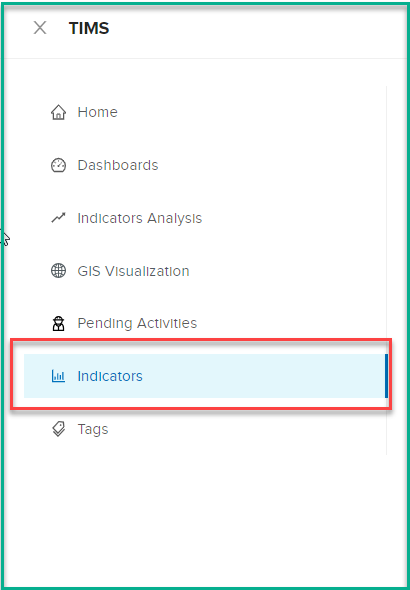
Filtering Indicators
On the Indicators Page, you'll find filter options to help you narrow down the list of indicators based on different criteria:
Name: Enter a keyword to filter indicators by name.
Sectors: Select sectors to filter indicators relevant to specific sectors.
Status: Choose between "Active" and "Inactive" status.
Visibility: Select between "Public" and "Private" visibility.
Editing Indicators
What : Update Indicator Data .
Who : Global Admin .
How :
-
Access Indicator Profile: From the table view of indicators, locate the indicator you wish to edit.
-
Click on Name: Click on the indicator's name (it's a hyperlink) to access its detailed profile. This will open the Indicator Profile page.
-
Edit Button: Within the Indicator Profile page, locate the "Edit" button or link. This button is typically located near the bottom of the profile page.
-
Edit Attributes: Clicking the "Edit" button will open an editable form containing the current attributes of the indicator.
-
Modify Information: Update the following attributes as needed:
Name: Change the name of the indicator.
Min Threshold: Adjust the minimum threshold value for the indicator.
Max Threshold: Adjust the maximum threshold value for the indicator.
Description: Edit the description of the indicator to reflect any changes.
Sectors: Add or remove sectors associated with the indicator.
Status: Toggle between "Active" and "Inactive" status for the indicator.
Visibility: Change the indicator's visibility ( "Public" (Avaliable for non-logged user) to "Private" (Avaliable for registerd users only) ).
-
Save Changes: After making the necessary changes, scroll to the bottom of the form and locate the "Save" button. Click this button to save your changes.
Export Indiactors Data
What : Export Indicators Data
Who : Global Admin , Country Admin and Editor .
How :
-
Go to the Indicators page by signing in as a Global Admin at https://tims.unhcr.org/.
-
On the Indicators page, you will see a table displaying indicator data with columns such as Name, Status, and Visibility.
-
If you want to export specific indicator data based on certain criteria, you can use the search or filter options to refine the list of users displayed in the table. Please note that the export will reflect the data visible on the UI after applying any search or filter.
-
Once you have the desired user data displayed on the table, click on the "Export" button.
-
The system will generate an XLS file containing the user data that is currently visible on the table.